First, open the Arktos patient portal in your phone’s web browser.
Apple iOS users
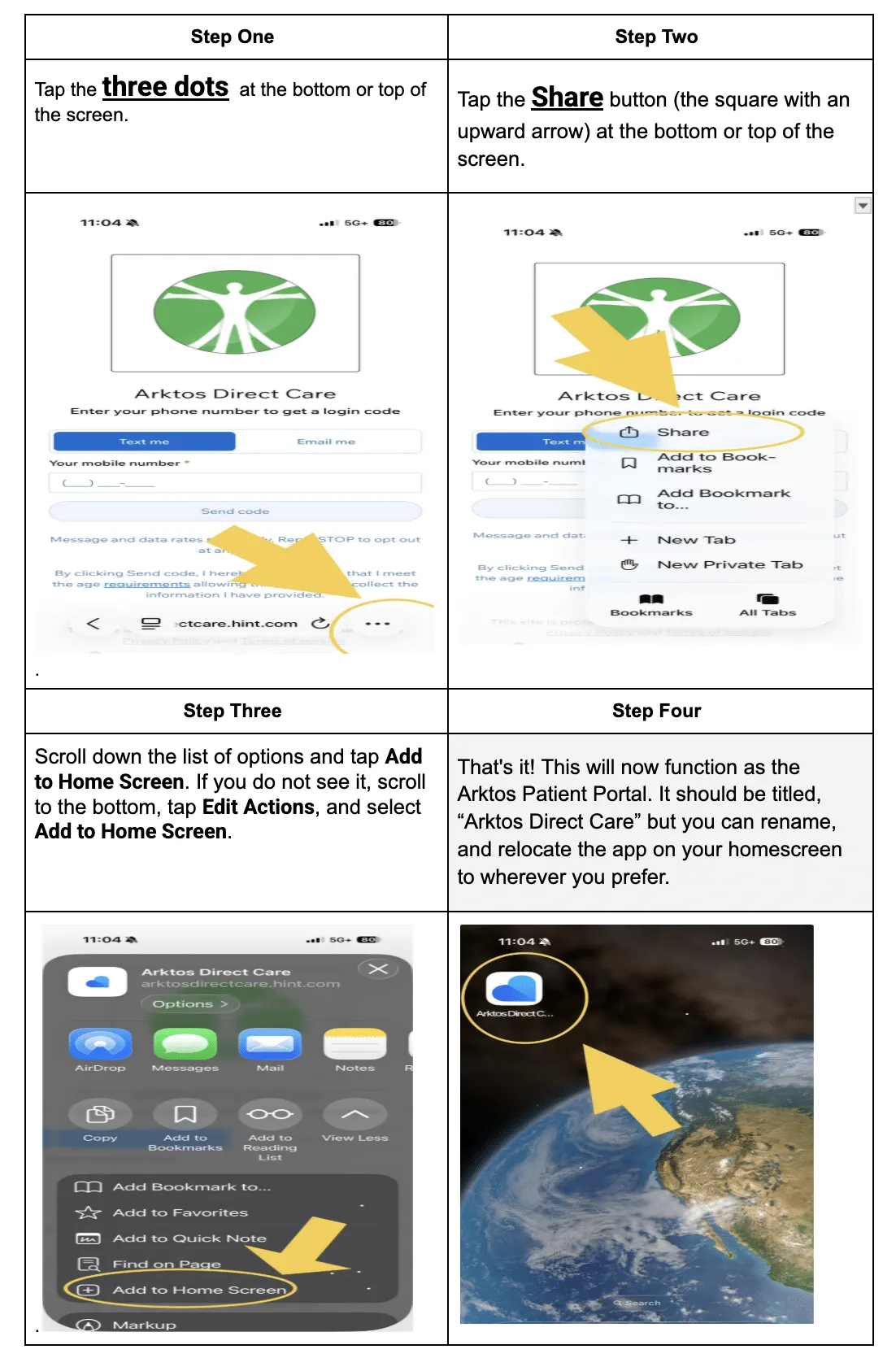
- Tap the three dots at the bottom or top of the screen.
- Tap the Share button (the square with an upward arrow) at the bottom or top of the screen.
- Scroll down the list of options and tap Add to Home Screen. If you do not see it, scroll to the bottom, tap Edit Actions, and select Add to Home Screen.
- That’s it! This will now function as the Arktos Patient Portal. It should be titled “Arktos Direct Care,” but you can rename it and move the app anywhere you prefer on your home screen.
Google Android users
-
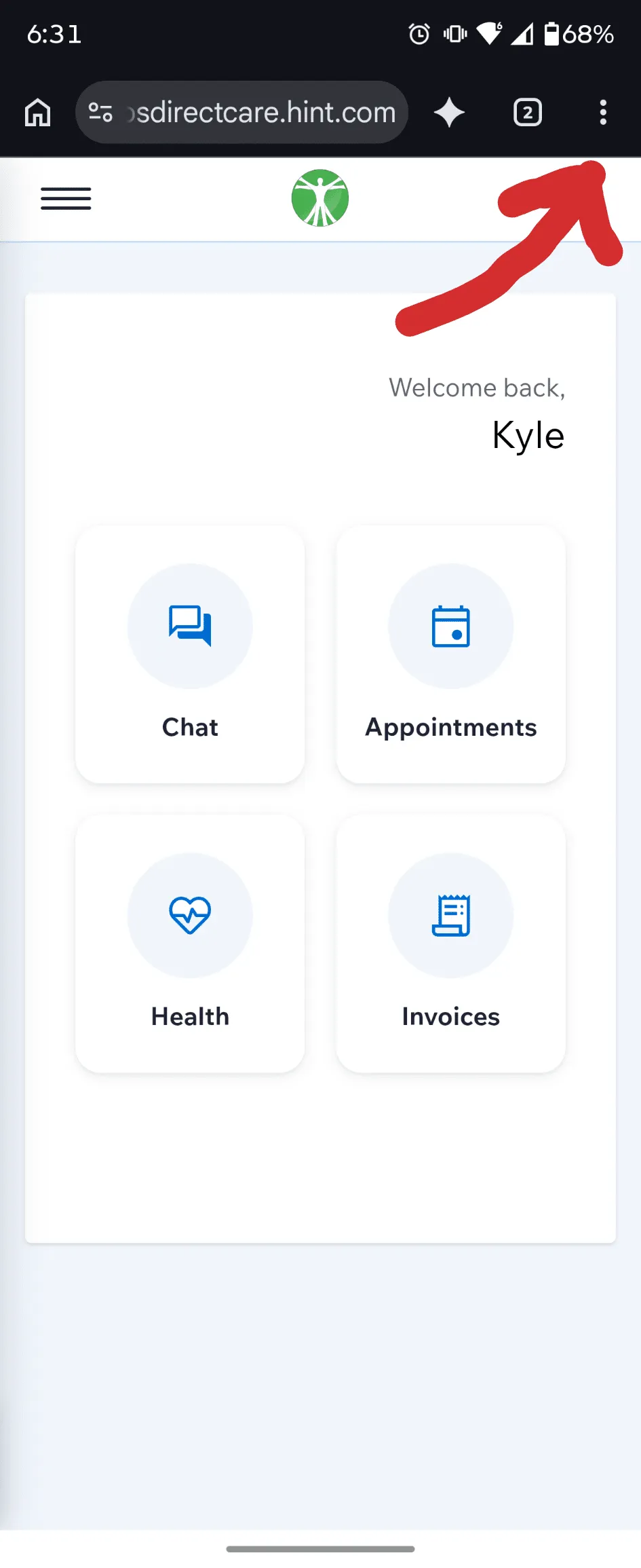
Tap the three dots in the top right corner.
-
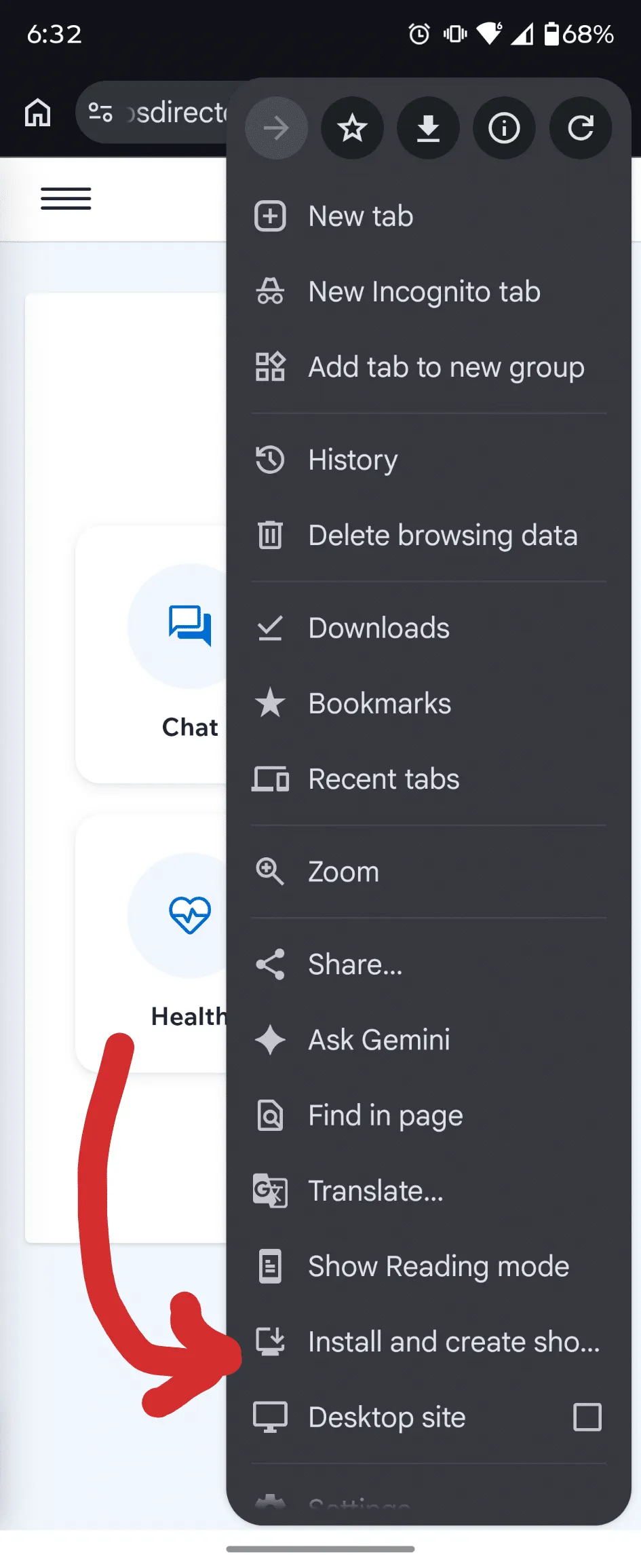
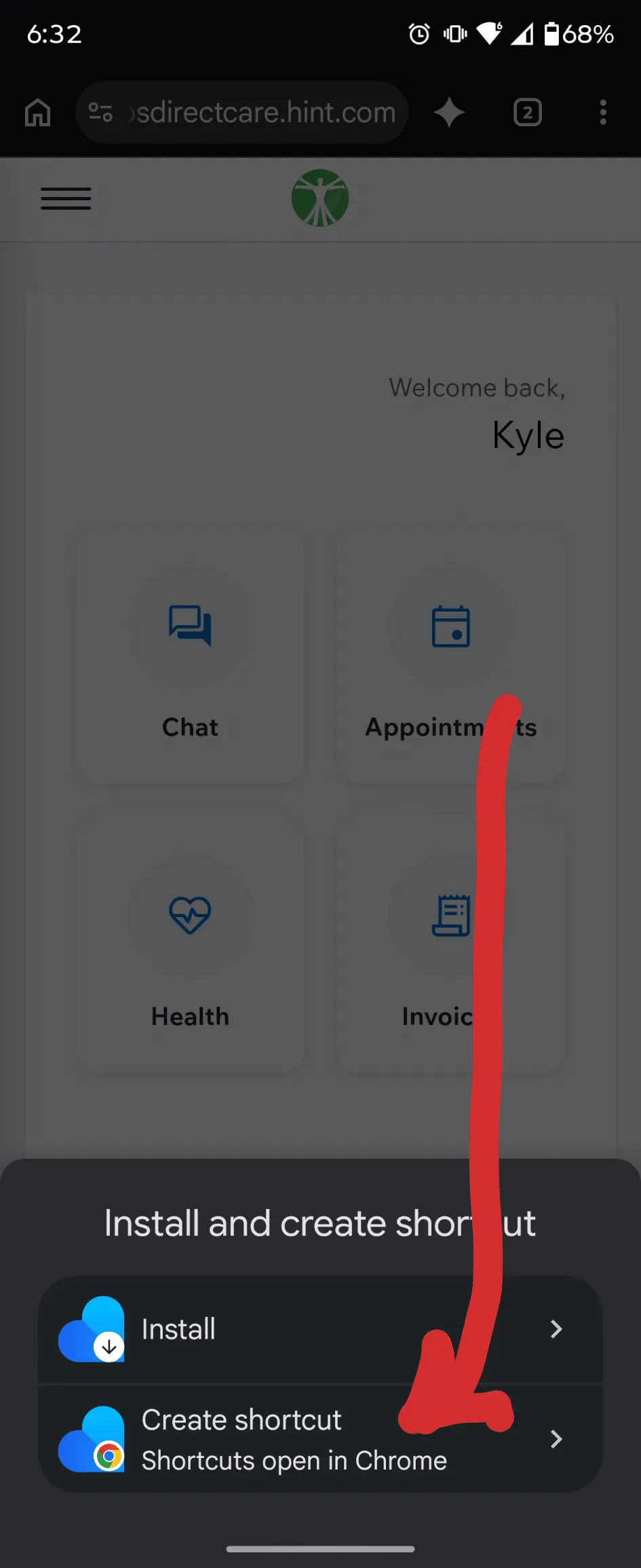
Tap Install and create shortcut at the bottom of the menu.
-
Tap Create shortcut.
-
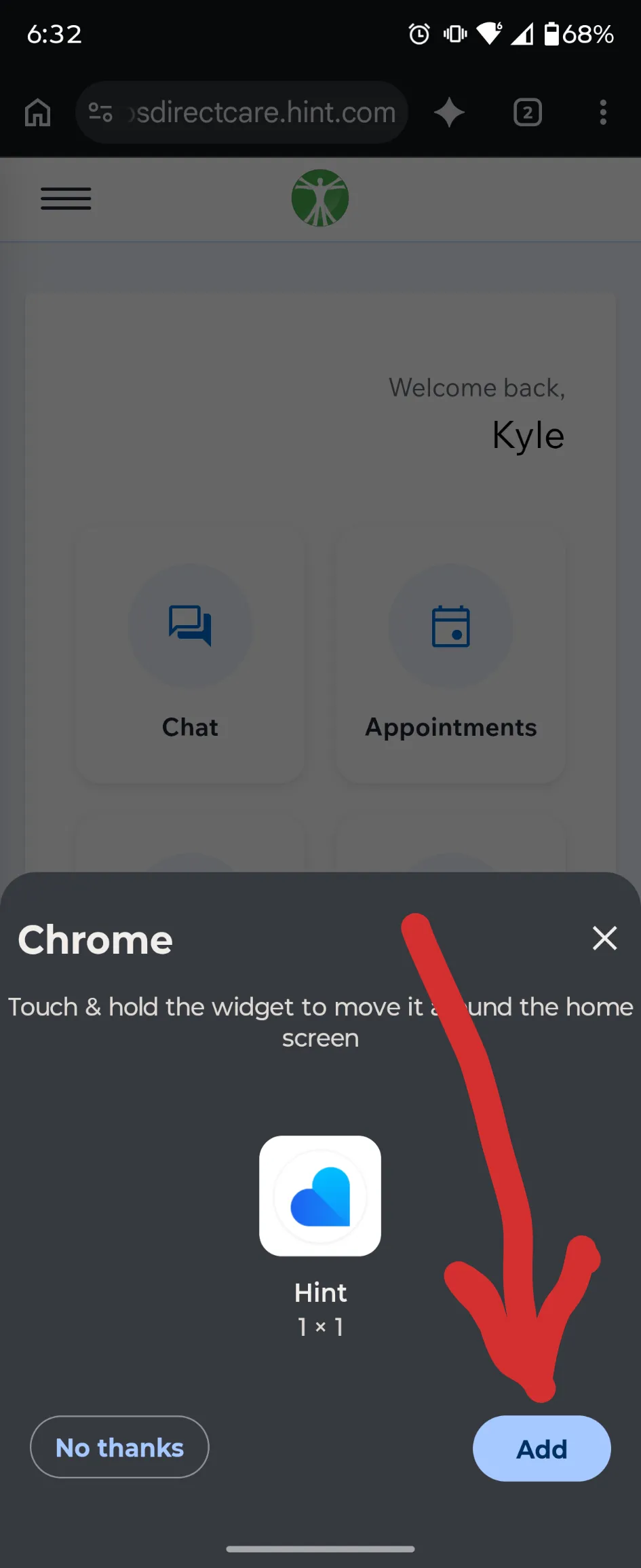
Tap Add. You can then move the shortcut icon anywhere you like.